Earn $$ with WidgetBucks!
Showing posts with label iphone. Show all posts

Tuesday, April 7, 2009

Quickoffice Suite for iPhone - the first real Microsoft Office-compatible iPhone suite

According to laptopmag.com, Quickoffice for iPhone was released at the start of this month in the US. It consists of three applications:

Quickword, which lets you create, edit and view Microsoft Word-compatible documents on the iPhone

Quicksheet, which allows you to create, edit and view Microsoft Excel-compatible spreadsheets on the iPhone, and

Quickoffice Files, which is basically the previously released MobileFiles 2.0 (which we reviewed here: iPhone Mobile Files Pro review)

This app lets you transfer files between your iPhone and your computer. It also allows you to view different file formats on your iPhone including PDF, iWork, PowerPoint and pictures.


According to the site, it is the single best iPhone app to edit, create and share Microsoft Office documents. You get all of the essentials like word wrapping, the facility to open and edit large and complex files, and support for Word and Excel.

However, on our last visit (7 April 2009) to the Greek app store, only Quickoffice Files and Quicksheet were available. Also, the quickoffice.com website implies that the suite has not yet been released in full (there is an option to sign up for a newsletter that will inform of the release). Maybe laptopmag.com tested a prelease of the product.

In any case, it seems that Quickoffice hands out Word and Excel –compatible documents to the iPhone user without a problem. In Quickword, you may double-tap to highlight text and use two tiny selection pins to move and highlight your document. If you click and hold, you can also zoom in for more precise highlighting, or triple-tap to select an entire document. Further, you can copy and paste any text—an aspect that even the latest iPhone OS itself has yet to integrate (until its new OS Version 3.0 is available). Quickoffice goes further than formatting to give emphasis to usability.

If somebody calls your iPhone, your document is automatically saved, even when the app shuts down due to the incoming call. Quickoffice even autosaves open docs every 5 minutes- in case the battery goes bust.
Very thoughtful feature.

Excel functionality seems to be robust as well. You can highlight and resize columns, compute data using a huge library of functions, and more. Copy/Paste functionality isn't yet available, but laptopmag.com states that the company said it's coming soon.

The complete suite’s price is $19.99, but QuickSheet or QuickWord are also available separately for $12.99 each, or Quickoffice Files for $3.99.

Quickoffice Files, like its predecessor Mobile Files, syncs Office documents seamlessly with Mobile Me, via Wi-Fi, to an FTP server and directly to your iPhone, or can turn your iPhone into a mounted drive via Wi-Fi.

Quickoffice for iPhone apparently doesn't support the creation of PowerPoint files, but you can view them as well as PDF and picture files. After months of waiting for a real mobile Office alternative for the iPhone, we seem to finally have something really useful and all-encompassing that lets us create, edit and share our Microsoft Office-compatible documents with our iPhone.


Friday, April 3, 2009

Web-based Microsoft Office 14 will run on iPhone's Safari

An official Microsoft Office suite will become available shortly on the iPhone.

Recently Microsoft exec Stephen Elop's suggested that Microsoft Office is coming to the iPhone. Ina Fried from cnet news asserts this will be the case as Microsoft seems to have already announced that they are planning to introduce Web-based versions of Microsoft Word, Excel, PowerPoint, and OneNote in the coming months. The applications will run in Safari, Internet Explorer and Firefox. Microsoft has already confirmed that this means Office for iPhone, as noted by Microsoft's Sarah Perez in November last year.

Microsoft did not explicitly state there will be a free version, though executives have noted the apps will be part of Office Live, which comes as both free and subscription packages. Perez insinuates that there will be both free and paid options. I am just curious whether this will appear as a gadget in the iPhone’s AppStore.


Generally speaking, one of the significant changes with Office 14 is the fact that, in addition to the desktop versions, Microsoft will also produce a set of "Office Web Applications" essentially slimmed-down versions of Word, Excel, PowerPoint, and OneNote that can run via a Web browser, including iPhone’s Safari. For the first time, this means Linux machines and Apple's iPhone will run the programs.


Ina Fried produced a video interview with Office development chief Antoine Leblond that you can view here: http://news.cnet.com/8301-13860_3-10210254-56.html


Exciting stuff for iPhone users with a real Mobile Office!

Friday, January 23, 2009

MobileFiles Pro review: a Microsoft Office editor for the iPhone

When the iPhone first came out, we witnessed the lack of Microsoft Office document editors, believing that their absence slowed down the slick communicator's acceptance as a serious business tool or a “Mobile Office”, as I call it. Well, Quickoffice has just released MobileFiles Pro. It is available from the AppStore at $9.99. It's not a complete iPhone Microsoft Office suite—yet. You can view Excel, PowerPoint, and Word files, but you can edit only Excel spreadsheets so far. Still, it's better than nothing, and the software may eventually include full Microsoft Mobile Office editing capacities. Certainly for those who prefer the sleek iPhone to the generally clunky Windows Mobile devices, this app is a welcome foot in the Office door, Michael Muchmore at Pcmag reports.


The MobileFiles Pro also offers the standard viewing features that were available with the original MobileFiles app, including iWork and PDF files. You can also listen to music files, watch mp4 videos, and look at images using the app. The application even lets you use the iPhone's wireless feature to swap files with a networked computer
The home screen shows where you can obtain, store, or create files. Right now, you can do so either on the iPhone, in your Apple MobileMe account, or on a Wi-Fi-connected Mac or PC. According to Quickoffice, the publishers of MobileFiles Pro, later this year you'll be able to keep files in Google Docs and box.net, too. On the Settings page you can do two tasks: choosing a password to protect the app and setting a maximum cache size for your working files. To create a new document, you first have to choose a folder location. Once you're in a folder, icons for creating folders and spreadsheets show up at the bottom of the screen. When you open a file, a new set of formatting icons appears.
Swapping documents and files between your desktop system and the iPhone is easy as we know from the other Finder-like apps we have used (Airsharing et al). You connect both to the same Wi-Fi network, and in the desktop's browser, navigate to the URL that MobileFiles shows on the iPhone. If you want, you can password-protect the resulting Web page, too. Note that the Wi-Fi router needs to be connected to the Internet for this to work—it's not simply a Wi-Fi connection between the iPhone, router, and PC. The Web page lets you get to your documents on the iPhone as well as upload and download them but gives you no spreadsheet or other program functionality. While this file-transfer feature isn't as neat as the one in Air Sharing (which adds drag-and-drop capability), it worked flawlessly in Michael’s testing.
The application includes an array of useful pre-built spreadsheets: a mortgage calculator, an expense planner, a student grade sheet, a personal net-worth calculator, and a break-even analyzer. You can edit these (and any Excel 2003 spreadsheet), entering your own numbers and changing formulas, and you can save new copies. You don't get the same ability that the combination of ActiveSync and Windows Mobile gives you to sync mobile and PC files. But using MobileMe to store files can achieve the same result, since you're simply storing the one file in online storage that can be accessed either from the phone or computer. And Wi-Fi transfer with MobileFiles Pro is more straightforward to set up than ActiveSync, which requires a program installation.


Editing a spreadsheet is simple. You can take advantage of the iPhone's touch screen to move the sheet, and the touch keyboard lets you make entries. Multi-touch pinching and spreading lets you zoom the view in and out. There are a couple of annoyances, though: The keyboard doesn't switch to number entry automatically, which usually makes sense for spreadsheet input, especially when the cell is in number format. (This was not the case in “Spreadsheet”, the app we had reported on last month). Also, tapping on the big "X" on the right-hand side of the text entry box doesn't clear the cell contents, as it would in any other iPhone app—possibly an early-stage oversight. The X does, however, work for clearing functions in a cell.


There are a couple of interface choices that Michael positively commented on: When you return to MobileFiles after quitting, you're taken right to the sheet and location you were last viewing—you're not forced to navigate back from a home screen. And the ever-useful Undo and Redo icons make life a lot easier for those of us who aren't infallible.

MobileFiles Pro doesn't let you create custom number formats, but you'll find every number-formatting selection Excel makes available in all its categories—currency, dates, scientific, accounting, and so forth. Toggling boldface and italics on or off is easy, as is changing the color of fonts and cell backgrounds. Adding rows and columns is equally straightforward, but you can't name a range or use cut-and-paste as you can with Microsoft Mobile Excel. You can select a range of cells, though without cut-and-paste capability, that's useful only for formatting.

The application offers the complete selection of functions that Excel lets you access from the "fx" symbol next to its cell-input box. Among the choices are financial standbys such as IRR (internal rate of return), trignonometric favorites, including arccosine, and statistical essentials such as standard deviations. But Microsoft's Excel Mobile offers all of this, along with helpful explanations of what each function does. Excel Mobile also gives you advanced features, such as the ability to refer to cells or regions on an external spreadsheet.

Excel Mobile comes out well ahead with charts and graphs, as well. MobileFiles Pro not only lacks the ability to create them, it can't even display them. Some users may consider charting and graphing capabilities to be frills, but they're a major reason that many people use a spreadsheet. The inability seriously detracts from MobileFiles' usefulness and also makes one wonder about the steep price. The company plans to add editing capabilities for the other Microsoft Office apps in 2009, which would justify the expenditure.

Even given its faults, MobileFiles Pro is a welcome step in the right direction for iPhone owners. It isn’t the first app that works with spreadsheets, but we are hoping that the iPhone Office editing capabilities will expand to the other programs of the Microsoft Office range. 

Monday, December 29, 2008

The iPhone really is a Mobile Office!

Here is another example of the iPhone's integration with your business office:

Last night while we were shooting a wedding, I could not remember how many hours the client had booked us for. Out comes the iPhone and using Vodafone free monthly data I connect to my iDisk using MobileFiles.

For those who don't know what the iDisk is and what it has to do with the iPhone: It is a service provided by Apple through MobileMe that provides you with an Internet hard drive that can be accessed by any device: a desktop computer (an Internet connection suffices), a laptop or your iPhone, provided you have a program like MobileFiles installed. I put all my important work stuff on iDisk, contracts, business plans, etc. It's like a hard drive that is the same and always up to date on any computer you use.

So out comes the iPhone and it connects to my iDisk through MobileFiles. Voilà. In a matter of seconds I downloaded the contract that was signed by the client and which I had scanned and saved on my iDisk, to my iPhone's screen.

Then last night I also couldn't remember the rate we pay our assistant videographer. Again out came the iPhone, and in a matter of seconds I had connected to our online book keeping software, Kashflow, and found out how much we pay him. All that with the iPhone's inbuilt Internet browser, Safari.

There are many occasions when I feel I have my whole office in my pocket, simply by having the iPhone handy.

Wednesday, December 24, 2008

"cannot view large PDF on iPhone"

The iphone is still having issues with viewing large PDF files, whether one uses AirSharing, Files, MobileFiles, MobileStudio or any other browsing app. The problem seems to be a memory allocation deficit in the actual iPhone OS. If anybody has found a workaround to fixing this problem or an iPhone app where you can actually view large PDFs with your iPhone, please leave a comment right here on the iPhone as a Mobile Office blog.

Merry iPhone Xmas

The iPhone as a Mobile Office wishes all iPhone business users a very merry Xmas!
Will you use your iPhone this Christmas to contact all your loved ones? Will you email them, call them, send them text messages or use cheap VoIP calls? I certainly will.
Merry Christmas.

Wednesday, December 17, 2008

New iPhone business app: Accepting credit card payments with an iPhone credit card terminal: Innerfence


iPhone business users can now accept credit card payments with a real iPhone Credit Card Terminal by Innerfence. This is a really significant step into the direction of the iPhone as a Mobile Office.If the iPhone can do point of sale transactions, you can really take your business office with you. This new business app enables the iPhone business user to accept credit card payments on site, without having to go back to the office. Whether I, as a photographer, meets a potential customer who wants to pay their retainer, or whether the business iPhone user works at antique fairs, music festivals, second hand computer shops, conventions, equipment rentals, car boot sales, farmers' markets, home party sales, party services or any other on-site services one can think of.
The iPhone user has to sign up with authorize.net and pay them a monthly fee plus a per-transaction fee. Sadly, this service is only available to business iPhone users in the USA. 

Think of the possibilities of a mobile Credit Card Terminal! Whether people unfamiliar with the iPhone Credit Card Terminal will be willing to hand over their plastic is another issue, and one that will probably be difficult to overcome at first. 
These are exciting time for savvy business users of the iPhone who work on the go, away from their office!


Wednesday, December 10, 2008

Cheap phone calls for business users of the iPhone: fring, Truphone

How to make cheap VoIP Skype phone calls with the iPhone. Download fring from the AppStore. It's free. Configure fring with your Skype account. Dial the number you want to call with Skype and press "Skype Out". Another similar VoIP solution is TruPhone. Similarly to Skype, you top up your account or buy a special savings pack ( such as the American & Canadian Saver) and make cheap iPhone calls! You need to use a wireless Internet connection to make it worth the while and not use up your data your iPhone service provider might have in your monthly package.
I have used fring successfully a few times, however, there are many times when it just disconnects when I try making that Skype Out call from the iPhone. I am not sure what the issue is here. Connecting to IM (instant messaging) services like MSN, yahoo and Google always works well.
Similarly, I have successfully made quite a few cheap phone calls from the iPhone using Truphone. They have very good customer service: I had bought the American & Canadian Saver package for 1000 minutes of calls to the US and Canada and the Truphone app could not log into my Truphone account from my iPhone for two weeks. When I contacted the Truphone customer services, they immediately helped me resolve the issue and extended my monthly package to reflect on the time I had lost and I went back to making more cheap calls to the US and Canada with my iPhone.
Cheap VoIP phone calls using the iPhone are now only one free visit to the AppStore away!

Should I buy an iPhone?

Many people are asking the question whether they should get an iPhone and whether an iPhone is worth its contract. My answer to the iPhone question is: Yes! Get an iPhone now! Is an iPhone worth its money? Yes it is.
You can listen to music on the iPod, you can sync all your contacts, sync all your calendars, send emails, surf the net, edit Microsoft Office documents, use the best iPhone business apps, watch videos, read PDFs, iWork files and MS Office documents, make cheap Skype phone calls and play iPhone games. Should you buy an iPhone? Yes, you should buy an iPhone.

Free blogging with the iPhone

I am using Blogwriter Lite from my iPhone to post this blog entry and this is my first time doing mobile blogging on my "Mobile Office". Writing this blog entry is even easier than using Microsoft Word or writing a Microsoft Office document. Blogwriter Lite is a free business app that I downloaded from the AppStore. I love the idea of using one single small tool like the iPhone for business. The only technical issue I found is this: If you have several blogs on one account, and want to switch to the next blog, you will need to log out of the iPhone Blogwriter Lite and log in again. Otherwise, it is really very easy to use your iPhone to blog for free.You simply write what you want to write and then you post it to your blog with a single click, and yes, that's you blogging with the iPhone, whether you're in the office or out of the office.

Sunday, December 7, 2008

Review and comparison of best iPhone Finder-like browsers and viewers: AirSharing

As a business and leisure iPhone user, one of the first things I searched for in the AppStore was an iPhone browser with which I could navigate through folders, files and documents and also view them on the go. In other words, I was looking to find something like a Mac OS X's Finder for the iPhone (Microsoft Windows users: the Finder on a Mac is the browser with which you view your files and folders).
Not having a clue where to start, I downloaded some of those applications from the AppStore and started using them. Here are my findings:

- AirSharing by Avatron Software (currently EUR 5,49- I downloaded it when it first came out for free). According to the info, this program is made to view your documents on the go. Using the app, you can also mount your iPhone as a wireless hard drive on your PC or Mac, drag-and-drop files and folders between the iPhone and your computer and view many common document formats, such as 
- iWork (Pages, Keynote and Numbers)
- Microsoft Office (Word, Powerpoint and Excel)
- Downloaded web pages or web archives (packaged by Safari)
- Plain text (e.g. .txt files),  RTF (rich text format), RTFD (TextEdit files with embedded pictures)
- PDF 
- Source code 
- Audio, Images, Movies (these have to be in iPhone-compatible format)

AirSharing is the most intuitive of all browser apps. It mounts very easily (at least on a Mac). All you have to do is go to your Mac's Finder Menu, select Go, "Connect to Server" and enter the address AirSharing gives you when it launches. This, obviously requires a WiFi connection. With AirSharing I have watched movies, listened to music (I could do that with the iPod on the iPhone too of course!), but most importantly, taken business and Office documents with me to view while on the go. For instance, I scanned in all my correspondence as .jpgs of a case I am working on at the moment and simply dragged-and-dropped it onto my iPhone. Whenever I went to the public office in question, I had all my paperwork and correspondence with them handy in my pocket! I also keep my company's logo in these folders,because I will be going to my graphic designer's soon so they can design our new studio signage. More importantly, this is where I keep e-books and read them on the go. Sometimes I download whole web pages (for instance, PDF versions of a Google Map when I am abroad and don't want to incur costly data roaming charges). I have also put in Lyrics and Guitar Chords (as .txt files) of my all favorite songs, because you never know when and where that next jamming session is going to start!
I have scanned in whole comic books as PDFs and put them on my iPhone to read!

All in all, AirSharing is an absolutely necessary app for any serious professional user of the iPhone. One flaw it has is its mediocre stability, especially with large PDF files. It either does not copy them to the iPhone, or even when it has copied them, they do not open or even when they open, they crash after a few pages. This is very annoying and will hopefully be fixed in the near future. However, as far as I know, this is not a fault of the developers. This has to do with allocated memory issues that are intrinsic to the iPhone. I say this because I have encountered the same issue in all other browser apps I am using.

AirSharing is a real time-saving app and necessary for all those professionals looking to work efficiently and organized with their iPhone as a "Mobile Office".


Saturday, December 6, 2008

Microsoft Office on the iPhone: Create, Edit, Share

The average iPhone business user and professional would like nothing more than having the ability to edit, create and share Microsoft Office compatible documents.
This would be the epitome of the iPhone as a Mobile Office.
So far, there isn't one app in the AppStore with full Microsoft Office functionality. 
At this point in time, we can only view Microsoft Office documents as well as PDF files, iWork documents, MP4 videos and more with programs such as AirSharing, MobileStudio (formerly "MobileFinder"), Discover, MobileFiles et al. 
MobileStudio actually lets you create .txt files which can then be shared wirelessly with your computer.

There are signs that developers are actively pursuing apps with full Microsoft Office capability. For instance, it has been reported that DataViz are developing a program called Documents To Go for the iPhone. Their website promises "Word, Excel and Powerpoint files on your iPhone". 
Palm and Blackberry operating systems already feature this product and it is expected that the iPhone version, too, will provide full editing capabilities. There is no official release date as of yet but the DataViz website offers a sign-up that will inform of product availability. 

Quickoffice, the makers of MobileFiles, also seem to be working at Office compatible editors. When you fill in the MobileFiles Survey, it is asking you how high you would rate the ability to edit Microsoft Office files on your iPhone and how much you wo
uld be willing to pay for it. I wouldn't be surprised to see them releasing something similar.


Up until today I have only seen one iPhone app that comes close to full functionality of a Microsoft Office program. This app is called Spreadsheet. With it you can create, edit and share Microsoft Excel compatible spreadsheets. It is available from the AppStore for EUR 4.99. 
I have played with a few times (see screenshot), and so far I must say that I am impressed. The great thing about it is the inbuilt sharing capability using the WebDAV protocol. This means that at the press of a couple of buttons ("Import/ Export" and "Enable File Sharing"), Spreadsheet connects wirelessly to your computer and acts as a WiFi hard drive. One can easily drag and drop Excel compatible documents (.xml files) onto it or from it. The only time I ran into trouble was when I opened an .xml file from the shared iPhone with Microsoft Excel for Mac and edited it. When I tried saving it on the shared iPhone, Spreadsheet crashed.
 I will post a more detailed review for it soon.

All in all, business iPhone users and professionals looking for a Mobile Office with full Microsoft Office capacities live in exciting times- when DataViz or any other developer release their new program(s) we will be able to radically increase our productivity, efficiency and organization even when we're on the go.


iPhone Notes business productivity tips and techniques. From "the iPhone as a Mobile Office"

Notes. the app that comes pre-installed with your iPhone, is a very simple but handy little tool.
Of course it creates notes, as the name implies. Anytime I have a nice business idea, I can jot it down in Notes and reorganize it later (e.g. in my business plan). I simply need to email it to myself.

Also, at this very moment, for example, I am using iphone Notes to write this blog article because I have no WiFi coverage and don't want to connect over the mobile provider- I want to save up some of my free monthly data that came with my iPhone plan. Later on I will email this note to myself and copy and paste it into the blog.

Another very useful business use for iPhone notes is creating some standard email responders or email signatures. On our Mac's Mail program I have the ability to create ready signatures. I exploit this ability not only to create standard email signatures with my name and contact details but to have ready responses to standard client enquiries such as when I send out a detailed pricelist. However, Mac Mail Signatures are not available on the iphone Email program. Nevertheless, one can create the same standard responses in iPhone Notes and then press the email button (the envelope icon). This will automatically copy-paste your note into a new email in the iPhone email program. Very handy productivity and efficiency tool for business users with a Mobile Office, i.e. their iPhone in their pocket.

Apart from business uses, I use Notes for writing down books, music and cinema films I am interested in. For example, I have one note that I call "films" where I note films of interest when I hear or read about them. This way, I immediately know what I'm looking for next time I walk into Blockbuster's. When I have seen a film I delete it from the note.

Even the standard iPhone apps that came pre-installed can be used smartly to increase your efficiency and productivity while you're on the go with your "Mobile Office".

Getting the most out of iPhone Maps and Google Maps. iPhone 3G. The iPhone as a Mobile Office.

Business iPhone users who love being productive and efficient even while on the road eagerly anticipated the GPS functionality of the new iPhone 3G. I was dreaming of a real GPS navigation system that I could use like a Garmin Nüvi (or a TomTom, a Magellan, a Navigon, etc). I saw that other manufacturers have also exploited this opportunity, for example Garmin has released Garmin Mobile XT, a mobile phone software for Blackberrys and Smartphones such as Palm Treo, Samsung Blackjack, Motorola Q, T-Mobile Dash etc.
The bad news is: the iPhone is not quite there yet. 
The good news is: iphone Maps still is a very useful tool in order to navigate yourself through unknown territory and it still is one of the best iPhone business apps. What is more, it comes pre-installed with your iPhone 3G. It's basically like Google Maps on steroids!

In simple terms, iPhone Maps works like this:
- it connects to Google Maps on the internet via a wireless (WiFi) connection or through your mobile provider's (e.g, Vodafone, Rogers, Bell, AT&T etc. depending on your country) mobile data network.
- it uses GPS to determine your current position.
- it creates "directions" from location A to location B. These locations can be manually entered by the user as addresses or pointed to by hand.
- it provides explanatory directions for each deviation of the way, such as "turn right at .... Street" or "take exit 25 and head towards Athens Center"

This is how I use iPhone Maps:
I press the bottom left symbol (the crosshair) to determine my current position. Then I press the Directions button.
The "start" field should be automatically filled with the words "current location". Now I fill in the destination address into the "End" field, such as "18 Akadimias, Athens, Greece".
I can pinch and zoom in the screen to see the map from up close. I can also press the "start" button for the iPhone Maps to give me step by step explanatory directions as in the above example.
Of course, unlike a proper GPS navigation system, iPhone Maps does not give you voice directions. The other downside in comparison to a Garmin, for instance, is that the mobile has to connect to the Internet in order to load the maps from Google. Real GPS navigation systems have the maps in their internal memory.
In order to avoid connecting to the Internet through your mobile data provider (and to possibly incur very costly charges or to deplete a lot of your monthly free data allocated by your coverage plan) a little trick is to zoom the map in to a level that is close enough so you can see where you are going but far enough so that iPhone Maps does not have to reload Google Maps every few seconds. Maps only reconnects to the Internet every time it needs a new portion of the map you are navigating.


Another trick, if you don't plan on connecting to the internet while on the go- for example because you're in a foreign country and don't want to incur extortionate Data Roaming costs- is to download the portion of Google Maps to your iPhone and view them offline.

Please note:
Below instructions require Mac OS X, a WiFi connection, and an iPhone file browser app like AirSharing, MobileStudio (previously "MobileFinder") or Discover.

- If you do have a Mac and an internet connection, but not a wireless one, you will need to create a wireless network with Mac OS X's inbuilt "Create a Computer-to-Computer Network" capability. Go to the wireless network icon in Mac OS X, press "Create Network", name your network, and press OK (I have not gone into any depth about setting up a WEP password for it).

First of all, assuming you use AirSharing, open AirSharing on your iPhone, read the IP address it give you at the bottom (for instance http://192.168.1.1:8080) and in your Mac's Finder, go to the menu item "Go" and then "Connect to Server".
Enter the given IP address into "server address". Now your iPhone is connected to your Mac wirelessly. Do not exit AirSharing
Go to Google Maps on your Mac's favorite browser (e.g. Safari or Firefox), press "Get Directions", enter your starting point and your destination.
Press "Print" and in the print window will open. Now press the "PDF" button in the lower left hand corner of the Print window and "Save as PDF". Save this PDF directly into your iPhone (by selecting it in the "Shared" section of your Finder's side panel). 

This is a good idea when you're abroad. I navigated myself through Montreal on some occasions when I visited Canada recently without actively using iPhone Maps or having to connect to Google Maps. This is another great example of how the iPhone as a Mobile Office can increase your efficiency and productivity when you're on the go.

Tuesday, November 25, 2008

Organizing your Address Book and iPhone Contacts for maximum productivity: the iPhone as a Mobile Office

For business users of the iPhone, who want a Mobile Office for maximum productivity and efficiency, everybody has their own strategy in order to get organized. This is what I do:

I organize my Contact Groups using my Mac's Address Book before I sync them to the iPhone. For instance, I have used the following Address Book Groups (in no particular order):
  • Doctors: a list of all important doctors and health care providers we may need
  • Restaurants: a list of all eateries and take-aways for hungry photographers
  • Clients: all past, present and future clients
  • Suppliers: all current and past suppliers
  • Home & Building (we are about to build a new house): all builders, architects, contractors and suppliers concerning building a new home
  • Family: all our relatives
  • Friends: all our friends and acquaintances 
  • Colleagues (other Photographers): colleagues that we have any relationships with
  • Pricelist: this is an interesting entry. We have a "Pricelist" group in our Address Book, in order to have all our services readily accessible on all our Macs and our iPhone. 
  • Public Services: Police Departments, Fire Departments, Hospitals (double entry with "Doctors"), Municipalities, Tax Office, Post Offices, Public Health Insurance, Cinemas, The Ombudsman, Ports & Ferries information (we live on an island) etc etc
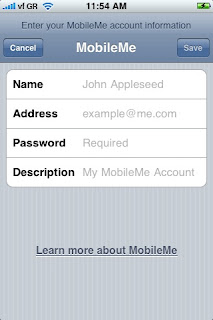
These are then automatically synced to the iPhone, as well as all other Macs we use through our MobileMe (formerly .Mac) subscription. On the iPhone 3G, go to Settings> Mail, Contacts, Calendars > "Add Account" and enter your MobileMe account.

A few simple business productivity tips for the savvy iPhone user in order to get the most out of it: 
Organize iPhone contacts by First Name or organize iPhone contacts by Last Name. My wife likes to organize her iPhone contacts by first name, whereas I like them sorted by last name.
On your iPhone, go to Settings/ Mail, Contacts, Calendars and scroll down to "Contacts" and select your preferred "Sort Order" and "Display Order". This way, you keep your iPhone contacts organized and sorted the way you like.
For all entries, I enter all relevant information I can get my hands on. Fax numbers, mobile numbers, names of spouses and children, birthdays, email addresses. You never know when they might come in handy and you might as well be prepared. Furthermore, I enter all important "Notes" in the Notes section. 
For instance, in the Clients category, I will note a wedding client's wedding date, as well as package details. In the Suppliers Category, I will enter all relevant staff I have talked to on specific dates and noting the topics of our conversation (if important).
I also use photographs whenever possible, especially when it comes to clients. There is nothing worse than a client who booked you to photograph their wedding a few weeks ago, coming in to finalize some details and you not recognizing them!! It has happened to me in the past, and trust me, it is not very good for your business, nor is it a sign of being organized, efficient or productive. It is only human when you have 40-50 wedding clients and another 500 general clients per year, but taking a picture of them after they sign a contract is a good idea! You can easily look them up in your Address Book on the Mac or on the iPhone Contacts.

I have become a lot more organized, efficient and productive since I started using the Mac's Address Book and iPhone Contacts for business.


Monday, November 24, 2008

Syncing between iPhone and MobileMe for Business: The iPhone as a Mobile Office

An efficient, productive and organized strategy for any business user of the iPhone who wants to have a Mobile Office includes syncing the iPhone with Apple's MobileMe (formerly .Mac).
The beauty of having an iPhone is that all your Contacts, Mail and Calendar get "synced" between your mobile and your designated computers.
We have two Macs (one iMac and one Mac Mini), two laptop Macs (Macbooks) and two iPhones and we love the ability to be able to share all our data. Whenever one user, for instance, enters a new telephone number in iPhone Contacts or the Mac's Address Book, it automatically gets synced to MobileMe's online "cloud", and then trickles down to all other MobileMe subscribers.
The same applies to entering a new Event in iCal or the iPhone Calendar. The main reason we purchased the iPhone was exactly that: to be able to have everybody in the team up-to-date with all our Contacts and our Events. Since we we have our iPhones and our MobileMe subscriptions organized, we have had tangible increases in our productivity and efficiency levels, even when we're on the go. Now what's what I call a Mobile Office.
Every business user of the iPhone s
hould have a MobileMe subscription. If you have a small team, one subscription is enough.


Keeping in sync isn't always easy, but when done properly, it can make a great difference to your productivity levels and workflows.
Lately some problems have been reported using MobileMe (formerly .Mac).
I certainly noticed that of the five iCal calendar categories we keep, some just randomly doubled or quadrupled.

Anyway, this is how we use MobileMe:

We use iCal and have five calendar categories that we sync to our iPhone's Calendar. These are all used as reminders. For more info about iCal productivity and efficiency, and how we use our calendars, read the article"Effective business use of the iPhone Calendar and iCal"

In our Mac's Address Book we have set up 10 categories, ranging from family to clients. These are also synced to our iPhone's Contacts. For more info on an organized and efficient business Address Book, please read the article "Organizing your Address Book and iPhone Contacts for maximum productivity".

On our Macs, in the System Preferences panel, we have signed into MobileMe with my account (we only have one), and we have turned on Sync for Safari Bookmarks, Calendars, Contacts, Mail Accounts, and Mail Rules...
We synchronize with MobileMe automatically.

There sometimes are glitches, and especially in the last couple of months with the transition from .Mac to MobileMe, these were very apparent.
Not all our calendars were synchronized for example, and many entries just randomly duplicated or quadrupled.

In order to clean up this mess, first of all I backed up all my important iCal data to my iDisk. Simply go to File/ Export to do so. Then, on one computer, I cleared up all the mess. I deleted duplicate entries, duplicate calendars and old entries I did not need anymore.

Then I went to the System Preferences panel, pressed the Advanced button and then the Reset Sync Data button in the new window.
I chose replace Calendars and "On MobileMe with sync info from this computer."
This means all the online data that will later trickle down to the other computers will be replaced by my cleaned up Calendar.

How to reset an iPhone calendar:
If you're iPhone calendar is all messed up, go to Settings/ Mail, Contacts, Calendars/ Accounts. Select the account you are using MobileMe with and turn off "Calendars". If you view your synced iPhone calendar now, it will be empty. When you turn it on again, it should be synced to the latest version.


Although lately there have been some technical issues with Apple's transition from .Mac to MobileMe, every business user of the iPhone that wants to keep their Mobile Office in their pocket should subscribe to MobileMe. From our own experience, it just makes you so much more productive, efficient, and organized.

Sunday, November 23, 2008

Effective business use of the iPhone Calendar and iCal


To use your iPhone as a Mobile Office, one of the first things a business iPhone user should do in order to work efficiently and to improve their productivity is to organize their favorite calendar application, such as iCal, Google Calendar or Microsoft Outlook and sync it to their iPhone. Please read "Syncing Between iPhone and MobileMe for business" to learn more about syncing your iPhone via MobileMe (formerly ".Mac"). 


For my work and life as a professional photographer, I have set up five simple categories on iCal on my Macs and have them synced to my iPhone calendar (unfortunately, at least at present [iPhone OS 2.1] one cannot create calendar categories on the iPhone and has to set them up on their computer):

On iCal 3.0.5, go to File/New Calendar and name your new calendar accordingly.

My five calendars are:

Home
  • Being organized at home is very important to feeling good, and in this calendar I write down all the pending chores that need to be done for home, such as: buy milk, return DVDs to video rental, browse Amazon for a new novel, wash car, phone mum to ask about Moussaka recipe etc
  • I try to arrange them in time in a manner that is efficient and productive for me:
  • For instance, if it is Monday morning now and I need to buy milk before going home, I will set the Event date at 2.15 pm, the exact time I am leaving our studio, and will also set an "Alert" "On date of event" to make sure that the iPhone's Alert will remind me, whether I am still in the office or already on the go. Similarly, I will time mum's phone call at a later time, when I know she will be home. In this case, I will probably not set an Alert for a specific time, because this isn't as pressing or important.
Work
  • To help my organization, productivity and efficiency for work I note all work that needs to be done in or regarding the studio in this calendar and look it up on the iPhone calendar or iCal before I start each working day.
  • In case I am not able to attend to a job I make sure I rearrange it accordingly, both in the calendar and by letting the other parties involved know
  • For instance, I have a recurring note to give our previous month's invoices and bills to our accountant on the first day of each month. "Repeat Event" "Every Month". Also in this category I note all client appointments with their real date and time, and set an "Alert" "2 hours before". That gives me enough time in case I had forgotten the appointment.
  • This "work" category can also be split up into two or more categories, such as "admin work", "photo work", "appointments & phone calls" but at present, one work category suits me well, as it keeps the iPhone calendar and iCal simple and uncluttered 
Photo Shoots
  • This is the most important category in my mobile calendar, because I cannot afford to miss a single photo shoot. Since our studio mostly shoots weddings, being organized, timely, and at the right spot is of the essence! 
  • Every time we book a client's wedding, we note the exact time and date in our iCal calendar at our studio Mac. Because iCal and the iPhone calendar will automatically choose a random time should you forget to enter the time manually, I make sure that the calendar entry reflects the time in writing. For instance, I will note "Pat Smith & Fiona Wilson @ 6 pm" in the "Event" section calendar, just in case I forgot to manually enter the time for the actual event. Here, I will also enter the "Location" underneath.
  • Apart from entering the record into iCal, we also enter it in the paper wall calendar in the office. There are so many weddings each year, and it only takes one wrong click by our assistant to delete an entry and for us to forget a wedding. This would spell disaster in our line of work. Every week we double check the entries in both our digital and old-fashioned wall calendar. 

Birthdays
  • Being organized, efficient and productive and having a Mobile Office in your pocket also means that one cannot forget their loved ones.
  • In this section, we note all our friends' and family's birthdays, together with the year of birth (if known!) and make sure "Repeat" is on "Every Year". We also make these "All Day Events" so they stick out from the rest of the day's notes.

Holidays
  • Rather than helping productivity, this section is more of an incentive than an actual holiday reminder! Who forgets their holidays anyway?!  As much as I love my job, not me!!
  • We do also note our assistant's days off and holidays here.

Using my iPhone on the go, I usually go to my iPhone Calendar, select "All calendars" and choose the "List" view to see what is coming up today, so I can prepare myself or possibly rearrange some jobs, phone calls or meetings. I do this at least once a day, especially when I am somewhere waiting.

All business users of the iPhone can do this simply and effectively.

Organizing your iPhone Calendar, in conjunction with your favorite calendar application, such as iCal, Google Calendar, or Microsoft Outlook is one of the first steps to make your iPhone your Mobile Office and to work more efficiently and productively while you're on the go! 

The iPhone as a Mobile Office: How To Work when on the Road!

Welcome to The iPhone as a Mobile Office. This site provides techniques and tips for people who want to use their iPhone as a mobile business office in order to work productively and efficiently and to get organized.
This blog presumes you already have a basic knowledge of using an iPhone and a computer and is primarily concerned with getting the most out of your iPhone in order to save time and money, working in a productive, efficient and organized manner while not in the office. 
If you have any questions that are not covered here, please feel free to leave a comment or a question on the blog.

Lukas likes sleeping- if you want him awake for more posts, you can buy him a bottle of Coke ($1)