Earn $$ with WidgetBucks!
Showing posts with label calendar. Show all posts

Monday, November 24, 2008

Syncing between iPhone and MobileMe for Business: The iPhone as a Mobile Office

An efficient, productive and organized strategy for any business user of the iPhone who wants to have a Mobile Office includes syncing the iPhone with Apple's MobileMe (formerly .Mac).
The beauty of having an iPhone is that all your Contacts, Mail and Calendar get "synced" between your mobile and your designated computers.
We have two Macs (one iMac and one Mac Mini), two laptop Macs (Macbooks) and two iPhones and we love the ability to be able to share all our data. Whenever one user, for instance, enters a new telephone number in iPhone Contacts or the Mac's Address Book, it automatically gets synced to MobileMe's online "cloud", and then trickles down to all other MobileMe subscribers.
The same applies to entering a new Event in iCal or the iPhone Calendar. The main reason we purchased the iPhone was exactly that: to be able to have everybody in the team up-to-date with all our Contacts and our Events. Since we we have our iPhones and our MobileMe subscriptions organized, we have had tangible increases in our productivity and efficiency levels, even when we're on the go. Now what's what I call a Mobile Office.
Every business user of the iPhone s
hould have a MobileMe subscription. If you have a small team, one subscription is enough.
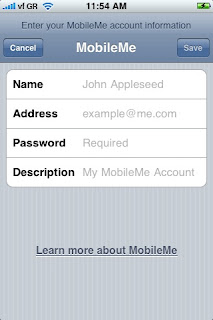


Keeping in sync isn't always easy, but when done properly, it can make a great difference to your productivity levels and workflows.
Lately some problems have been reported using MobileMe (formerly .Mac).
I certainly noticed that of the five iCal calendar categories we keep, some just randomly doubled or quadrupled.

Anyway, this is how we use MobileMe:

We use iCal and have five calendar categories that we sync to our iPhone's Calendar. These are all used as reminders. For more info about iCal productivity and efficiency, and how we use our calendars, read the article"Effective business use of the iPhone Calendar and iCal"

In our Mac's Address Book we have set up 10 categories, ranging from family to clients. These are also synced to our iPhone's Contacts. For more info on an organized and efficient business Address Book, please read the article "Organizing your Address Book and iPhone Contacts for maximum productivity".

On our Macs, in the System Preferences panel, we have signed into MobileMe with my account (we only have one), and we have turned on Sync for Safari Bookmarks, Calendars, Contacts, Mail Accounts, and Mail Rules...
We synchronize with MobileMe automatically.

There sometimes are glitches, and especially in the last couple of months with the transition from .Mac to MobileMe, these were very apparent.
Not all our calendars were synchronized for example, and many entries just randomly duplicated or quadrupled.

In order to clean up this mess, first of all I backed up all my important iCal data to my iDisk. Simply go to File/ Export to do so. Then, on one computer, I cleared up all the mess. I deleted duplicate entries, duplicate calendars and old entries I did not need anymore.

Then I went to the System Preferences panel, pressed the Advanced button and then the Reset Sync Data button in the new window.
I chose replace Calendars and "On MobileMe with sync info from this computer."
This means all the online data that will later trickle down to the other computers will be replaced by my cleaned up Calendar.

How to reset an iPhone calendar:
If you're iPhone calendar is all messed up, go to Settings/ Mail, Contacts, Calendars/ Accounts. Select the account you are using MobileMe with and turn off "Calendars". If you view your synced iPhone calendar now, it will be empty. When you turn it on again, it should be synced to the latest version.


Although lately there have been some technical issues with Apple's transition from .Mac to MobileMe, every business user of the iPhone that wants to keep their Mobile Office in their pocket should subscribe to MobileMe. From our own experience, it just makes you so much more productive, efficient, and organized.

Sunday, November 23, 2008

Effective business use of the iPhone Calendar and iCal


To use your iPhone as a Mobile Office, one of the first things a business iPhone user should do in order to work efficiently and to improve their productivity is to organize their favorite calendar application, such as iCal, Google Calendar or Microsoft Outlook and sync it to their iPhone. Please read "Syncing Between iPhone and MobileMe for business" to learn more about syncing your iPhone via MobileMe (formerly ".Mac"). 


For my work and life as a professional photographer, I have set up five simple categories on iCal on my Macs and have them synced to my iPhone calendar (unfortunately, at least at present [iPhone OS 2.1] one cannot create calendar categories on the iPhone and has to set them up on their computer):

On iCal 3.0.5, go to File/New Calendar and name your new calendar accordingly.

My five calendars are:

Home
  • Being organized at home is very important to feeling good, and in this calendar I write down all the pending chores that need to be done for home, such as: buy milk, return DVDs to video rental, browse Amazon for a new novel, wash car, phone mum to ask about Moussaka recipe etc
  • I try to arrange them in time in a manner that is efficient and productive for me:
  • For instance, if it is Monday morning now and I need to buy milk before going home, I will set the Event date at 2.15 pm, the exact time I am leaving our studio, and will also set an "Alert" "On date of event" to make sure that the iPhone's Alert will remind me, whether I am still in the office or already on the go. Similarly, I will time mum's phone call at a later time, when I know she will be home. In this case, I will probably not set an Alert for a specific time, because this isn't as pressing or important.
Work
  • To help my organization, productivity and efficiency for work I note all work that needs to be done in or regarding the studio in this calendar and look it up on the iPhone calendar or iCal before I start each working day.
  • In case I am not able to attend to a job I make sure I rearrange it accordingly, both in the calendar and by letting the other parties involved know
  • For instance, I have a recurring note to give our previous month's invoices and bills to our accountant on the first day of each month. "Repeat Event" "Every Month". Also in this category I note all client appointments with their real date and time, and set an "Alert" "2 hours before". That gives me enough time in case I had forgotten the appointment.
  • This "work" category can also be split up into two or more categories, such as "admin work", "photo work", "appointments & phone calls" but at present, one work category suits me well, as it keeps the iPhone calendar and iCal simple and uncluttered 
Photo Shoots
  • This is the most important category in my mobile calendar, because I cannot afford to miss a single photo shoot. Since our studio mostly shoots weddings, being organized, timely, and at the right spot is of the essence! 
  • Every time we book a client's wedding, we note the exact time and date in our iCal calendar at our studio Mac. Because iCal and the iPhone calendar will automatically choose a random time should you forget to enter the time manually, I make sure that the calendar entry reflects the time in writing. For instance, I will note "Pat Smith & Fiona Wilson @ 6 pm" in the "Event" section calendar, just in case I forgot to manually enter the time for the actual event. Here, I will also enter the "Location" underneath.
  • Apart from entering the record into iCal, we also enter it in the paper wall calendar in the office. There are so many weddings each year, and it only takes one wrong click by our assistant to delete an entry and for us to forget a wedding. This would spell disaster in our line of work. Every week we double check the entries in both our digital and old-fashioned wall calendar. 

Birthdays
  • Being organized, efficient and productive and having a Mobile Office in your pocket also means that one cannot forget their loved ones.
  • In this section, we note all our friends' and family's birthdays, together with the year of birth (if known!) and make sure "Repeat" is on "Every Year". We also make these "All Day Events" so they stick out from the rest of the day's notes.

Holidays
  • Rather than helping productivity, this section is more of an incentive than an actual holiday reminder! Who forgets their holidays anyway?!  As much as I love my job, not me!!
  • We do also note our assistant's days off and holidays here.

Using my iPhone on the go, I usually go to my iPhone Calendar, select "All calendars" and choose the "List" view to see what is coming up today, so I can prepare myself or possibly rearrange some jobs, phone calls or meetings. I do this at least once a day, especially when I am somewhere waiting.

All business users of the iPhone can do this simply and effectively.

Organizing your iPhone Calendar, in conjunction with your favorite calendar application, such as iCal, Google Calendar, or Microsoft Outlook is one of the first steps to make your iPhone your Mobile Office and to work more efficiently and productively while you're on the go! 

Lukas likes sleeping- if you want him awake for more posts, you can buy him a bottle of Coke ($1)