Earn $$ with WidgetBucks!
Showing posts with label contacts. Show all posts

Tuesday, November 25, 2008

Organizing your Address Book and iPhone Contacts for maximum productivity: the iPhone as a Mobile Office

For business users of the iPhone, who want a Mobile Office for maximum productivity and efficiency, everybody has their own strategy in order to get organized. This is what I do:

I organize my Contact Groups using my Mac's Address Book before I sync them to the iPhone. For instance, I have used the following Address Book Groups (in no particular order):
  • Doctors: a list of all important doctors and health care providers we may need
  • Restaurants: a list of all eateries and take-aways for hungry photographers
  • Clients: all past, present and future clients
  • Suppliers: all current and past suppliers
  • Home & Building (we are about to build a new house): all builders, architects, contractors and suppliers concerning building a new home
  • Family: all our relatives
  • Friends: all our friends and acquaintances 
  • Colleagues (other Photographers): colleagues that we have any relationships with
  • Pricelist: this is an interesting entry. We have a "Pricelist" group in our Address Book, in order to have all our services readily accessible on all our Macs and our iPhone. 
  • Public Services: Police Departments, Fire Departments, Hospitals (double entry with "Doctors"), Municipalities, Tax Office, Post Offices, Public Health Insurance, Cinemas, The Ombudsman, Ports & Ferries information (we live on an island) etc etc
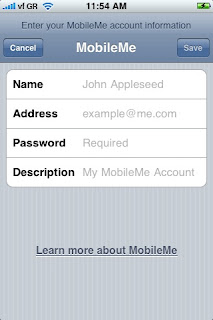
These are then automatically synced to the iPhone, as well as all other Macs we use through our MobileMe (formerly .Mac) subscription. On the iPhone 3G, go to Settings> Mail, Contacts, Calendars > "Add Account" and enter your MobileMe account.

A few simple business productivity tips for the savvy iPhone user in order to get the most out of it: 
Organize iPhone contacts by First Name or organize iPhone contacts by Last Name. My wife likes to organize her iPhone contacts by first name, whereas I like them sorted by last name.
On your iPhone, go to Settings/ Mail, Contacts, Calendars and scroll down to "Contacts" and select your preferred "Sort Order" and "Display Order". This way, you keep your iPhone contacts organized and sorted the way you like.
For all entries, I enter all relevant information I can get my hands on. Fax numbers, mobile numbers, names of spouses and children, birthdays, email addresses. You never know when they might come in handy and you might as well be prepared. Furthermore, I enter all important "Notes" in the Notes section. 
For instance, in the Clients category, I will note a wedding client's wedding date, as well as package details. In the Suppliers Category, I will enter all relevant staff I have talked to on specific dates and noting the topics of our conversation (if important).
I also use photographs whenever possible, especially when it comes to clients. There is nothing worse than a client who booked you to photograph their wedding a few weeks ago, coming in to finalize some details and you not recognizing them!! It has happened to me in the past, and trust me, it is not very good for your business, nor is it a sign of being organized, efficient or productive. It is only human when you have 40-50 wedding clients and another 500 general clients per year, but taking a picture of them after they sign a contract is a good idea! You can easily look them up in your Address Book on the Mac or on the iPhone Contacts.

I have become a lot more organized, efficient and productive since I started using the Mac's Address Book and iPhone Contacts for business.

Monday, November 24, 2008

Syncing between iPhone and MobileMe for Business: The iPhone as a Mobile Office

An efficient, productive and organized strategy for any business user of the iPhone who wants to have a Mobile Office includes syncing the iPhone with Apple's MobileMe (formerly .Mac).
The beauty of having an iPhone is that all your Contacts, Mail and Calendar get "synced" between your mobile and your designated computers.
We have two Macs (one iMac and one Mac Mini), two laptop Macs (Macbooks) and two iPhones and we love the ability to be able to share all our data. Whenever one user, for instance, enters a new telephone number in iPhone Contacts or the Mac's Address Book, it automatically gets synced to MobileMe's online "cloud", and then trickles down to all other MobileMe subscribers.
The same applies to entering a new Event in iCal or the iPhone Calendar. The main reason we purchased the iPhone was exactly that: to be able to have everybody in the team up-to-date with all our Contacts and our Events. Since we we have our iPhones and our MobileMe subscriptions organized, we have had tangible increases in our productivity and efficiency levels, even when we're on the go. Now what's what I call a Mobile Office.
Every business user of the iPhone s
hould have a MobileMe subscription. If you have a small team, one subscription is enough.


Keeping in sync isn't always easy, but when done properly, it can make a great difference to your productivity levels and workflows.
Lately some problems have been reported using MobileMe (formerly .Mac).
I certainly noticed that of the five iCal calendar categories we keep, some just randomly doubled or quadrupled.

Anyway, this is how we use MobileMe:

We use iCal and have five calendar categories that we sync to our iPhone's Calendar. These are all used as reminders. For more info about iCal productivity and efficiency, and how we use our calendars, read the article"Effective business use of the iPhone Calendar and iCal"

In our Mac's Address Book we have set up 10 categories, ranging from family to clients. These are also synced to our iPhone's Contacts. For more info on an organized and efficient business Address Book, please read the article "Organizing your Address Book and iPhone Contacts for maximum productivity".

On our Macs, in the System Preferences panel, we have signed into MobileMe with my account (we only have one), and we have turned on Sync for Safari Bookmarks, Calendars, Contacts, Mail Accounts, and Mail Rules...
We synchronize with MobileMe automatically.

There sometimes are glitches, and especially in the last couple of months with the transition from .Mac to MobileMe, these were very apparent.
Not all our calendars were synchronized for example, and many entries just randomly duplicated or quadrupled.

In order to clean up this mess, first of all I backed up all my important iCal data to my iDisk. Simply go to File/ Export to do so. Then, on one computer, I cleared up all the mess. I deleted duplicate entries, duplicate calendars and old entries I did not need anymore.

Then I went to the System Preferences panel, pressed the Advanced button and then the Reset Sync Data button in the new window.
I chose replace Calendars and "On MobileMe with sync info from this computer."
This means all the online data that will later trickle down to the other computers will be replaced by my cleaned up Calendar.

How to reset an iPhone calendar:
If you're iPhone calendar is all messed up, go to Settings/ Mail, Contacts, Calendars/ Accounts. Select the account you are using MobileMe with and turn off "Calendars". If you view your synced iPhone calendar now, it will be empty. When you turn it on again, it should be synced to the latest version.


Although lately there have been some technical issues with Apple's transition from .Mac to MobileMe, every business user of the iPhone that wants to keep their Mobile Office in their pocket should subscribe to MobileMe. From our own experience, it just makes you so much more productive, efficient, and organized.

Lukas likes sleeping- if you want him awake for more posts, you can buy him a bottle of Coke ($1)